Catnap
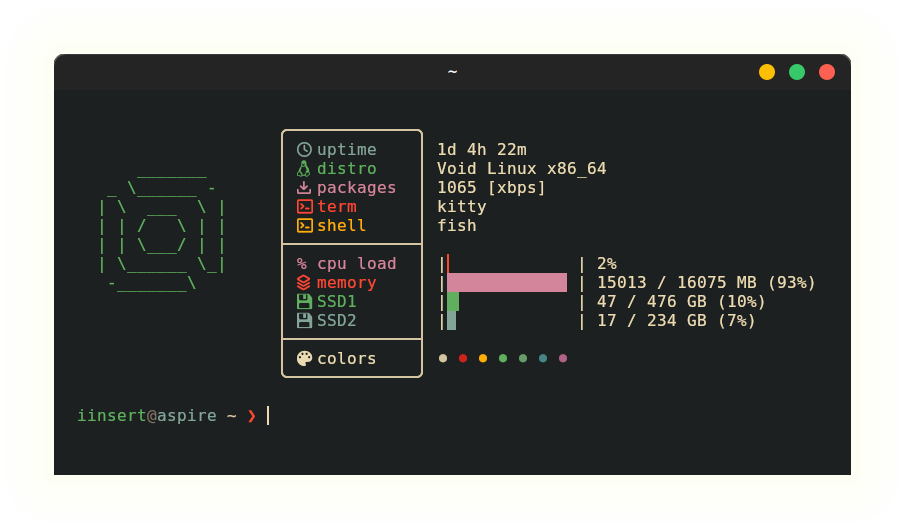
Catnap is a fast fetch tool built around a config language, not a config file. Your distro art, color themes, and stats are all defined in plain .cat files you own and version alongside your dotfiles. It typically runs in under 10ms.
Warning
Upgrading from v1.x? Catnap 2.0 replaced the TOML config system entirely. The old
config.tomlanddistros.tomlfiles are not compatible with v2. After upgrading, runnim install(or manually copy the new.catfiles) to get a fresh default config. The new format is simpler and more expressive. See Config Language.
Where to start
- New install - Installation
- Just installed, want a working config fast - Quick Start
- Learning the config format - Config Language
- All CLI flags - Usage
Installation
There are four ways to install catnap. Pick the one that fits your situation:
| Method | Good for |
|---|---|
| Quick install | Good for most users. Gets you running in under a minute |
| From source | Contributors and developers who want the latest code |
| GitHub release (manual) | Installing without the script, or scripting your own setup |
| Static build from source | Building a fully self-contained binary yourself |
Quick install
The easiest and fastest way to install catnap is using the release install helper script. It detects your architecture, downloads the right static binary and config files from the latest GitHub release, and puts everything in place. The binaries are statically linked, so catnap has no runtime dependencies after install. The script itself requires bash, curl, and tar to be available on your system.
# Download the install script
curl -Lo install.sh https://raw.githubusercontent.com/iinsertNameHere/catnap/main/install.sh

# Install catnap
sudo bash ./install.sh
Warning
As a general rule, always review scripts before running them as root. You can read the install script on GitHub before downloading.
Updating: Run the script again. It will show your currently installed version alongside the latest and ask before proceeding:
sudo bash install.sh
Uninstalling:
sudo bash install.sh uninstall
From source
Build catnap yourself if you want the latest unreleased changes or plan to contribute. This produces a dynamically linked binary that depends on pcre and usbutils at runtime.
Dependencies:
| Dependency | Purpose |
|---|---|
nim | Build toolchain (v2.x+) |
gzip | Build toolchain |
pcre | Runtime (regex) |
usbutils | Runtime (hardware info) |
1. Clone the repository:
git clone https://github.com/iinsertNameHere/catnap.git
cd catnap
2. Build and install:
nim install
This compiles catnap in release mode, installs the binary to /usr/local/bin/, and copies the default config files to ~/.config/catnap/:
~/.config/catnap/
├── config.cat
├── distros.cat
└── themes/
    └── catppuccin-mocha.cat
Note
nim installrequiressudoto write to/usr/local/bin/. To install without sudo, runnim setupinstead. It builds the binary (placed inbin/catnaplocally) and copies the config files to~/.config/catnap/. This lets you place the binary wherever you like.
3. Verify:
catnap
Updating: Pull the latest changes and reinstall:
git pull
nim install
Your config files in ~/.config/catnap/ are not overwritten by nim install. Only the binary is replaced.
Warning
If you have local edits in the cloned source
config/directory,git pullmay produce merge conflicts there. Your installed config in~/.config/catnap/is always separate and is not affected by git operations.
Manual install from a GitHub release
Pre-built statically linked binaries are published on the GitHub releases page. They have no external runtime dependencies.
Available binaries:
| File | Architecture |
|---|---|
catnap-{version}-x86_64 | 64-bit x86 - most desktops and laptops |
catnap-{version}-aarch64 | 64-bit ARM - Raspberry Pi 4+, ARM servers |
catnap-{version}-armv7l | 32-bit ARM |
catnap-{version}-i686 | 32-bit x86 |
1. Download the binary for your architecture and move it to your PATH. Replace x86_64 with your arch if needed:
VERSION=$(curl -Ls -o /dev/null -w '%{url_effective}' https://github.com/iinsertNameHere/catnap/releases/latest | grep -oE 'v[0-9]+\.[0-9]+\.[0-9]+')
curl -Lo catnap "https://github.com/iinsertNameHere/catnap/releases/download/${VERSION}/catnap-${VERSION}-x86_64"
chmod +x catnap
sudo mv catnap /usr/local/bin/
2. Download the config tarball from the same release and copy the files into place:
VERSION=$(catnap -v | cut -d' ' -f2)
curl -Lo catnap-config.tar.gz \
  "https://github.com/iinsertNameHere/catnap/releases/download/${VERSION}/catnap-${VERSION}-config.tar.gz"
tar xf catnap-config.tar.gz
mkdir -p ~/.config/catnap/themes
cp config/config.cat   ~/.config/catnap/
cp config/distros.cat  ~/.config/catnap/
cp config/themes/*.cat ~/.config/catnap/themes/
3. Verify:
catnap
Note
The default config uses Nerd Font glyphs for icons. Set a Nerd Font as your terminal font or the icons will show as boxes. The weather stat also requires a font with emoji support.
Updating: Download the new binary and replace the old one:
VERSION=$(curl -Ls -o /dev/null -w '%{url_effective}' https://github.com/iinsertNameHere/catnap/releases/latest | grep -oE 'v[0-9]+\.[0-9]+\.[0-9]+')
curl -Lo catnap "https://github.com/iinsertNameHere/catnap/releases/download/${VERSION}/catnap-${VERSION}-x86_64"
chmod +x catnap
sudo mv catnap /usr/local/bin/
Config files are not touched by a binary update. If a new release adds new config variables, the defaults built into the binary apply automatically.
Static build from source
This produces a fully self-contained binary with no runtime dependencies, built using musl libc. Useful if you want a portable binary you can move between systems or distribute yourself.
Dependencies:
| Dependency | Purpose |
|---|---|
nim | Build toolchain (v2.x+) |
musl-tools | Provides musl-gcc for native x86_64 static builds |
1. Clone the repository:
git clone https://github.com/iinsertNameHere/catnap.git
cd catnap
2. Build the static PCRE libraries (only needed once):
nim installPcre
nim installPcre2
3. Build the static binary:
nim static_release
The binary is placed at bin/catnap.
4. Install the binary and config files:
nim install_cfg
sudo nim install_bin
5. Verify:
catnap
Note
If
musl-gccis not on your PATH, set theMUSLCCenvironment variable before building:MUSLCC=x86_64-linux-musl-gcc nim static_release
Updating: Pull and rebuild:
git pull
nim static_release
sudo nim install_bin
The PCRE libraries only need to be rebuilt if you switch musl toolchains or the pcre version changes.
Quick Start
You have installed catnap and run it once. This page walks through the most common customisations in a few minutes.
What got installed
~/.config/catnap/
├── config.cat              ← main config, edit this
├── distros.cat             ← distro art, imported by config.cat
└── themes/
    └── catppuccin-mocha.cat
config.cat is the only file you normally need to touch. It imports distros.cat automatically.
Apply a theme
Add one line at the very top of config.cat, before anything else:
import "themes/catppuccin-mocha.cat"

import "distros.cat"
...
The theme must be imported first so its color definitions are in place before stats are resolved. See Themes for writing your own.
Change which stats appear
Find the $stats list in config.cat. To hide a stat without deleting it, use enabled=false:
@{id="gpu" icon='' name="gpu" color=$magenta enabled=false}
You can also comment it out with ;:
; @{id="packages" icon='' name="pkgs" color=$red}
Reorder by moving lines. The display order matches the list order exactly.
$stats = [
    @{id="username"  icon=''  name="user"    color=$red}
    @{id="hostname"  icon=''  name="host"    color=$yellow}
    @{id="separator"}
    @{id="distro"    icon=''  name="distro"  color=$green}
    @{id="kernel"    icon=''  name="kernel"  color=$magenta}
    @{id="packages"  icon=''  name="pkgs"    color=$red  enabled=false}
    @{id="separator"}
    @{id="memory"    icon=''  name="memory"  color=$yellow  graph=true}
    @{id="colors"    icon=''  name="colors"  color=$reset   symbol=''}
]
Change the layout
$layout = "art_on_top"
| Value | Effect |
|---|---|
"inline" | Logo and stats side by side (default) |
"art_on_top" | Logo above stats |
"stats_on_top" | Stats above logo |
Change the border style
$border_style = "double"
| Value | Border |
|---|---|
"single" | ╭─╮ │ ╰─╯ (default) |
"double" | ╔═╗ ║ ╚═╝ |
"dashed" | ╭┄╮ ┊ ╰┄╯ |
"dotted" | ••• ┇ ••• |
"none" | No border |
Test a single stat
Use -g to print one stat value and exit. This is useful for checking that a stat works before adding it to your config, or for feeding a value into a script or status bar (such as Waybar):
catnap -g memory
catnap -g cpu_usage
catnap -g disks        # lists all detected disk mounts and their disk_N index numbers

# Example: use in a shell script
MEMORY=$(catnap -g memory)
echo "RAM: $MEMORY"
Try a different distro logo
catnap -d arch
catnap -d void
catnap -d tux          # tux is the default/fallback logo
Next steps
- Config Language: full language reference
- Stats: all stat IDs and graph options
- Looks: all layout and style variables
- Distro Art: adding or customising logos
- Themes: writing your own theme
Usage
catnap [options]
With no flags, catnap reads ~/.config/catnap/config.cat (or $XDG_CONFIG_HOME/catnap/config.cat) and prints the fetch output.
Flags
-c / --config <path>
Use a custom config file instead of the default.
catnap -c ~/dotfiles/catnap/config.cat
import statements inside the file resolve relative to that file’s location, so import "distros.cat" looks for distros.cat next to it.
-d / --distroid <id>
Override which distro logo is displayed, regardless of what the system reports.
catnap -d arch
catnap -d void
catnap -d tux
The ID must match an entry defined in your distros.cat. Run catnap -g distro to see what catnap detects automatically.
-g / --grep <stat>
Print a single stat value to stdout and exit.
catnap -g username
catnap -g memory
catnap -g cpu_usage
catnap -g disks        # lists all detected mounts and their disk_N index numbers
This is useful for testing individual stats while building your config, and for integrating catnap into scripts or status bars (such as Waybar or i3blocks):
# Shell script example
MEMORY=$(catnap -g memory)
UPTIME=$(catnap -g uptime)
echo "$UPTIME | $MEMORY"
-l / --layout <layout>
Override the layout for this run without editing the config.
catnap -l art_on_top
Available values: inline, art_on_top, stats_on_top. See Looks for details.
-m / --margin <top,left,right>
Override the logo margin for this run. Values are comma-separated integers.
catnap -m 0,2,3
catnap -m 2,2,2
-n / --no-cache
Clear the cache before running. Use this if a stat is showing a stale value.
catnap -n
-v / --version
Print the catnap version and exit.
catnap -v
-h / --help
Print a summary of all flags plus the full list of available stat names and distro IDs.
catnap -h
Config Language
All catnap config files are written in a small, purpose-built config language. Files use the .cat extension.
Note
This page is a complete technical reference for the language. If you just want to get started editing your config, Quick Start is the better place to begin.
Comments
Single-line comments start with ; and run to the end of the line:
; This is a comment
$layout = "inline"   ; inline comment
Multi-line comments are delimited by ;* and *;:
;* ─────────────────────────────────
   Catppuccin Mocha - catnap theme
   ───────────────────────────────── *;
Imports
Load and process another .cat file. The path is relative to the importing file.
import "distros.cat"
import "themes/catppuccin-mocha.cat"
Imports are evaluated before the rest of the file. This is how themes work: imported first, their variable definitions are in place before stats and colors are resolved.
Variables
Variables start with $. Assign with =:
$name = value
The last assigned value always wins. Variable resolution happens after the entire file (and all its imports) is parsed, not at the point of assignment. This means:
$var1 = 12
$var2 = $var1
$var1 = 40

; $var2 resolves to 40, not 12
This also applies across imports. If distros.cat uses $blue in its art lines, and you redefine $blue after the import statement, the distros will use your new value:
import "distros.cat"    ; uses $blue internally

$blue = #89b4fa         ; this value applies to the distros too
Value types
String
Double-quoted text. Used for labels, paths, layout names, and city names.
$layout   = "inline"
$location = "London"
Integer
A bare number. Used for margin and padding values.
$stats_margin_top = 2
$graph_width      = 20
Boolean
true or false. Used for feature flags.
graph   = true
enabled = false
Char
A single character in single quotes. Distinct from strings, and only used for icon and symbol fields in stat entries. Double quotes cause a parse error here.
icon   = ''
symbol = ''
Color
Three notations are accepted wherever a color value is expected:
| Notation | Syntax | Example | Result |
|---|---|---|---|
| Hex | #rrggbb | #f38ba8 | 24-bit ANSI escape (requires true-color terminal) |
| RGB | (r g b) | (255 165 0) | 24-bit ANSI escape, space-separated, no commas |
| ANSI code | !n | !31 | Standard ANSI escape \e[31m |
$red    = #f38ba8       ; hex
$orange = (255 165 0)   ; RGB - spaces, no commas
$blue   = !34           ; raw ANSI code
All three resolve to ANSI escape sequences at startup. Hex and RGB require a terminal with true-color support.
Variable reference
A $name used as a value resolves to that variable’s final value (after all assignments in the entire file):
$accent     = #cba6f7
$stat_color = $accent   ; resolves to whatever $accent ends up being
Lists
Lists hold multiple items, one per line, enclosed in [ and ]. No commas between items.
$items = [
    "first"
    "second"
    $somevar
]
The two lists used in practice are $stats and $distros. Both follow this list syntax. Only the item types inside differ.
Stat objects
A stat object describes one entry in a stats block. It starts with @{:
@{id="statid" key=value key=value}
Stat objects can be stored in any variable or list, but in practice they are used as items in the $stats list. The recognized fields are:
| Field | Type | Description |
|---|---|---|
id | string | Which stat to display. See Stats for all IDs. |
icon | char | Icon shown to the left of the label |
name | string | Label text |
color | color or variable | Color applied to icon and label |
enabled | boolean | Set to false to skip this entry without removing it |
symbol | char | Only meaningful for the colors stat. The swatch character. |
graph | boolean | Only meaningful for stats that output a percentage. Renders a progress bar. |
graph_style | string | Bar style. Only meaningful when graph=true. |
graph_width | integer | Bar width in characters. Only meaningful when graph=true. |
graph_color_fg | color | Filled-portion color. Only meaningful when graph=true. |
graph_color_bg | color | Empty-portion color. Only meaningful when graph=true. |
A separator is a stat object with no icon or name, only an id:
@{id="separator"}
Example
$stats = [
    @{id="username"  icon=''  name="user"    color=$red}
    @{id="hostname"  icon=''  name="host"    color=$yellow}
    @{id="separator"}
    @{id="memory"    icon=''  name="memory"  color=$yellow  graph=true}
    @{id="gpu"       icon=''  name="gpu"     color=$magenta  enabled=false}
    @{id="colors"    icon=''  name="colors"  color=$reset   symbol=''}
]
Art objects
An art object defines a distro ASCII logo. It starts with %{:
%{id="name" art=["line 1" "line 2"] margin=[top left right]}
Art objects can be stored in any variable or list, but in practice they are used as items in the $distros list. The recognized fields are:
| Field | Type | Description |
|---|---|---|
id | string or list of strings | Distro name(s) that map to this logo. A list enables aliases. |
art | list of strings | Art lines, one string per row |
margin | list of integers | Spacing around the logo (1, 2, or 3 values) |
Example
$distros = [
    %{  id="arch"
        art=[
            "{$blue}      /\\      "
            "{$blue}     /  \\     "
        ]
        margin=[2 2 3]
    }

    %{  id=["mint" "linuxmint"]
        art=["..."]
        margin=[0 2 2]
    }
]
String interpolation
Inside art line strings, switch color mid-line with {$varname}:
"{$blue}    /\\ /\\    "
"{$red}text here {$reset}back to terminal default"
All variables that resolve to a color work inside interpolation braces.
Configuration variables
These are the variable names catnap reads by name when building its internal config. Other variables are valid to define (for reuse), but only these have a special meaning to the tool.
| Variable | Type | Required | Default | Description |
|---|---|---|---|---|
$stats | list of stat objects | yes | The stats to display, in order | |
$distros | list of art objects | yes | All distro logo definitions | |
$layout | string | yes | Layout mode: "inline", "art_on_top", "stats_on_top" | |
$border_style | string | yes | Border style: "single", "double", "dashed", "dotted", "none" | |
$border_color | color | no | !0 | Color of the border characters |
$text_color | color | no | !0 | Color of stat values on the right side |
$stats_margin_top | integer | no | 0 | Blank lines above the stats block |
$location | string | no | "" | City name for the weather stat |
$graph_width | integer | no | 15 | Default progress bar width for graph-enabled stats |
$distroid | string | no | Overwrite what distro art is displayed |
The 17 pre-injected color variables ($red, $blue, etc.) are also recognized. See Colors for the full list.
Quick reference
; single-line comment

;* multi-line
   comment *;

import "other.cat"

$str    = "hello"           ; string
$num    = 42                ; integer
$flag   = true              ; boolean
$hex    = #f38ba8           ; hex color
$rgb    = (255 100 50)      ; RGB color - spaces, no commas
$ansi   = !31               ; ANSI color code
$ref    = $other            ; variable reference (resolves to final value of $other)

$list = [                   ; list - no commas between items
    "item1"
    $ref
]

; Stat objects
@{id="statid"  icon=''  name="label"  color=$red}
@{id="separator"}
@{id="gpu"  icon=''  name="gpu"  color=$magenta  enabled=false}

; Art objects
%{id="archlinux"  art=["  /\\  " " /  \\ "]  margin=[2 2 3]}
%{id=["mint" "linuxmint"]  art=["..."]  margin=[0 2 2]}

; Color interpolation in strings
$line = "{$blue}hello {$reset}world"
Colors
Catnap resolves all color values at startup into ANSI escape sequences. Three notations are accepted anywhere a color value is used: in stat color fields, variable assignments, and theme files.
Notations
Hex
# followed by six hex digits. Produces a 24-bit true-color escape. Requires a terminal with true-color support.
$red  = #f38ba8
$blue = #89b4fa
RGB
Three space-separated integers in parentheses. Equivalent to hex, also 24-bit. No commas.
$orange = (255 165 0)
$purple = (180 100 240)
ANSI code
! followed by a standard ANSI color number. Uses your terminal’s built-in palette, so the shade is controlled by your terminal theme.
$red  = !31
$blue = !34
Standard ANSI codes: !30-!37 (8 colors), !90-!97 (bright variants), !0 (reset all).
Pre-injected variables
These are available in every config without definition. They default to ANSI codes so they adapt to your terminal’s color scheme. Themes override them with explicit hex values.
| Variable | Default | Description |
|---|---|---|
$black | !30 | Black |
$red | !31 | Red |
$green | !32 | Green |
$yellow | !33 | Yellow |
$blue | !34 | Blue |
$magenta | !35 | Magenta |
$cyan | !36 | Cyan |
$white | !37 | White |
$bright_black | !90 | Bright black (grey) |
$bright_red | !91 | Bright red |
$bright_green | !92 | Bright green |
$bright_yellow | !93 | Bright yellow |
$bright_blue | !94 | Bright blue |
$bright_magenta | !95 | Bright magenta |
$bright_cyan | !96 | Bright cyan |
$bright_white | !97 | Bright white |
$reset | !0 | Reset all attributes |
$text_color | !0 | Color of stat values (right side of the stats block) |
$border_color | !0 | Color of the border characters |
Defining custom colors
Define your own variables and reference them anywhere a color is accepted:
$brand   = #7c3aed
$warning = (255 180 0)

$stats = [
    @{id="cpu"  icon=''  name="cpu"  color=$brand}
]
Colors in art lines
Inside art line strings, switch color mid-line using {$varname} interpolation:
"{$blue}    /\\ /\\    "
"{$red}left {$green}right {$reset}back to terminal default"
Any pre-injected or custom color variable works inside the braces. Use {$reset} to stop a colored section from bleeding into subsequent lines or the stats block.
Config Files
Default locations
Catnap searches for its config in this order:
$XDG_CONFIG_HOME/catnap/config.cat(if$XDG_CONFIG_HOMEis set)~/.config/catnap/config.cat/etc/catnap/config.cat(system-wide fallback)
Use -c <path> to point catnap at any .cat file instead.
What gets installed
Running nim install (or following the binary release setup) creates:
~/.config/catnap/
├── config.cat              ← main config, the entry point catnap reads
├── distros.cat             ← all distro ASCII art definitions
└── themes/
    └── catppuccin-mocha.cat
config.cat
This is the file catnap reads at startup. It is responsible for:
- Optionally importing a theme
- Importing
distros.cat - Defining all required and optional configuration variables
- Defining the
$statslist
The default config.cat installed by nim install:
import "distros.cat"
$layout = "inline"
$border_style = "single"
$border_color = $white
$stats_margin_top = 0
$location = ""
$graph_width = 15
$stats = [
@{id="username" icon='' name="user" color=$red}
@{id="hostname" icon='' name="hostname" color=$yellow}
@{id="uptime" icon='' name="uptime" color=$blue}
@{id="separator"}
@{id="kernel" icon='' name="kernel" color=$magenta}
@{id="distro" icon='' name="distro" color=$green}
@{id="packages" icon='' name="packages" color=$red}
@{id="separator"}
@{id="desktop" icon='' name="desktop" color=$cyan}
@{id="terminal" icon='' name="term" color=$red}
@{id="shell" icon='' name="shell" color=$magenta}
@{id="separator"}
@{id="battery" icon='' name="battery" color=$green}
@{id="gpu" icon='' name="gpu" color=$magenta}
@{id="cpu" icon='' name="cpu" color=$red}
@{id="cpu_usage" icon='%' name="cpu use" color=$red}
@{id="disk_0" icon='' name="disk" color=$green}
@{id="memory" icon='' name="memory" color=$yellow}
@{id="separator"}
@{id="weather" icon='' name="weather" color=$blue}
@{id="colors" icon='' name="colors" color=$reset symbol=''}
]
distros.cat
Defines the $distros list: all ASCII art logos and the distro names that map to them. Imported by config.cat with:
import "distros.cat"
You rarely need to edit this file directly. If you do add a custom logo, consider submitting it so others can benefit. See Distro Art for the full syntax.
themes/
Theme files are small .cat files that override variables. Applied with a single import at the top of config.cat:
import "themes/catppuccin-mocha.cat"

import "distros.cat"
...
The theme import must come first so its variable definitions are in place before stats and colors are resolved. See Themes.
Custom config path
Point catnap at any .cat file with -c:
catnap -c ~/dotfiles/catnap/config.cat
import statements inside that file resolve relative to its location, so import "distros.cat" looks for distros.cat in the same directory as the config file.
Stats
Stats are defined as a list assigned to $stats in config.cat. Display order matches list order.
Note
$statsmust be defined. Catnap cannot start without it.
Warning
The
packages,gpu, andweatherstats are slow. They run external commands or make network requests. Disable any you do not need.
Stat entry syntax
@{id="statid" icon='' name="label" color=$variable}
| Field | Type | Required | Description |
|---|---|---|---|
id | string | yes | Which stat to display - see table below |
icon | char | yes | Icon shown to the left of the label |
name | string | yes | Label text |
color | color or variable | yes | Color applied to icon and label |
enabled | boolean | no | Set to false to hide this entry without removing it |
Important
iconmust be a char literal in single quotes (''). Double quotes cause a parse error.
Available stats
| ID | Description | Notes |
|---|---|---|
username | Current user name | |
hostname | Machine hostname | |
uptime | System uptime | |
distro | Distro name and architecture | |
kernel | Kernel version | |
desktop | Desktop environment or WM | |
shell | Current shell | |
terminal | Terminal emulator | |
cpu | CPU model name | |
cpu_usage | CPU usage percentage | Delta-based, shows N/A on first run |
memory | RAM used / total | |
battery | Battery percentage and charge status | |
gpu | GPU model | Requires glxinfo. Slow. |
packages | Installed package count | Depends on package manager. Slow. |
weather | Current weather | Requires curl and emoji font. Slow. |
colors | Terminal color swatch | Requires symbol field - see below |
disk_0, disk_1, … | Disk usage by mount index | Linux only |
Tip
Run
catnap -g disksto list all detected mount points and theirdisk_Nindex numbers.
Separator
Draws a horizontal rule inside the stats block:
@{id="separator"}
Any number of separators can appear anywhere in the list.
Colors stat
Shows a row of terminal color swatches. Requires a symbol char field - the character repeated once per color swatch:
@{id="colors" icon='' name="colors" color=$reset symbol=''}
Disabling a stat
Use enabled=false to hide an entry without removing it from your config:
@{id="gpu" icon='' name="gpu" color=$magenta enabled=false}
You can also comment the line out with ;:
; @{id="packages" icon='' name="pkgs" color=$red}
Reordering
Move lines up or down in the list. Display order exactly matches list order.
Progress bar graphs
Stats that output a percentage value can show an inline progress bar. Add graph=true to the stat entry:
@{id="memory"    icon=''  name="memory"    color=$yellow  graph=true}
@{id="cpu_usage" icon='%'  name="cpu use"   color=$red     graph=true}
@{id="disk_0"    icon=''  name="disk"      color=$green   graph=true}
@{id="battery"   icon=''  name="battery"   color=$green   graph=true}
Stats that do not output a percentage (like username or kernel) will ignore graph=true.
The bar appears before the raw value: ▰▰▰▰▰▰▰▰▱▱▱▱ 67%
Graph options
These fields are per-stat only. The only global fallback is $graph_width.
| Field | Type | Default | Description |
|---|---|---|---|
graph_style | string | "precise" | Bar rendering style - see table below |
graph_width | integer | value of $graph_width | Width in characters |
graph_color_fg | color | $text_color | Filled-portion color |
graph_color_bg | color | $text_color | Empty-portion color |
Bar styles
| Style | Example | Description |
|---|---|---|
"precise" | |███▌ | | Sub-pixel 1/8-block precision (default) |
"blocks" | ████░░░░░░ | Full-block and light-shade characters |
"thin" | ▰▰▰▰▱▱▱▱▱ | Thin fill and empty bars |
"ascii" | [####------] | ASCII-only, works in any terminal |
"dots" | ●●●●○○○○○ | Filled and empty circles |
"pacman" | [---C ooo] | Inspired by the progress bar in the pacman package manager (Arch Linux) |
Setting the global width
The $graph_width variable in config.cat sets the default bar width for all graph-enabled stats. Individual stats can override it with their own graph_width field.
$graph_width = 15 ; default for all graph-enabled stats
Example with mixed styles
$graph_width = 15

$stats = [
    @{id="memory"
        icon=''  name="memory"  color=$yellow
        graph=true  graph_style="pacman"  graph_color_fg=$yellow}

    @{id="battery"
        icon=''  name="battery"  color=$green
        graph=true  graph_style="thin"  graph_color_fg=$green}

    @{id="cpu_usage"
        icon='%'  name="cpu use"  color=$red
        graph=true}

    @{id="disk_0"
        icon=''  name="disk"  color=$green
        graph=true  graph_width=20}
]
Full example
$stats = [
    @{id="username"  icon=''   name="user"      color=$red}
    @{id="hostname"  icon=''   name="hostname"  color=$yellow}
    @{id="uptime"    icon=''   name="uptime"    color=$blue}
    @{id="separator"}
    @{id="distro"    icon=''   name="distro"    color=$green}
    @{id="kernel"    icon=''   name="kernel"    color=$magenta}
    @{id="packages"  icon=''  name="packages"  color=$red  enabled=false}
    @{id="separator"}
    @{id="desktop"   icon=''   name="desktop"   color=$cyan}
    @{id="terminal"  icon=''   name="term"      color=$red}
    @{id="shell"     icon=''   name="shell"     color=$magenta}
    @{id="separator"}
    @{id="cpu"       icon=''   name="cpu"       color=$red}
    @{id="cpu_usage" icon='%'  name="cpu use"   color=$red    graph=true}
    @{id="memory"    icon=''   name="memory"    color=$yellow
        graph=true  graph_style="pacman"  graph_color_fg=$yellow}
    @{id="disk_0"    icon=''   name="disk"      color=$green  graph=true}
    @{id="battery"   icon=''   name="battery"   color=$green
        graph=true  graph_style="thin"  graph_color_fg=$green}
    @{id="separator"}
    @{id="weather"   icon=''   name="weather"   color=$blue}
    @{id="colors"    icon=''   name="colors"    color=$reset  symbol=''}
]
Looks
These top-level variables in config.cat control layout and visual style.
Note
$layoutand$border_stylemust be defined. Catnap cannot start without them.
$layout
Arranges the distro logo and stats block relative to each other.
$layout = "inline"
| Value | Description |
|---|---|
"inline" | Logo and stats side by side (default) |
"art_on_top" | Logo printed above the stats |
"stats_on_top" | Stats printed above the logo |
Override per-run with catnap -l <value>.
$border_style
Characters used to draw the box around the stats block.
$border_style = "single"
| Value | Description |
|---|---|
"single" | Solid single-line box (default) |
"double" | Double-line box |
"dashed" | Dashed lines |
"dotted" | Dotted lines |
"none" | No border characters |
$border_color
Color of the border characters.
$border_color = $white
$border_color = #585b70
Pre-injected and defaults to !0 (terminal default color) if not set.
$text_color
Color applied to stat values, the text on the right side of the stats block.
$text_color = $white
$text_color = #cdd6f4
Pre-injected and defaults to !0 (terminal default color) if not set. Themes typically define this to match their palette.
$stats_margin_top
Number of blank lines above the stats block. Useful with "inline" layout when you want the stats to start lower than the top of a tall logo.
$stats_margin_top = 3
Defaults to 0.
$location
City name passed to the weather stat. If empty or omitted, catnap attempts to auto-detect your location via IP.
$location = "London"
Only relevant if weather is in your $stats list.
$graph_width
Default bar width (in characters) for all graph-enabled stats. Individual stat entries can override it with their own graph_width field.
$graph_width = 15
See Stats for per-stat graph options.
Minimal valid example
$layout           = "inline"
$border_style     = "single"
$border_color     = $white
$stats_margin_top = 0
$location         = ""
Distro Art
Distro art is defined in distros.cat as a list assigned to $distros. Each entry maps one or more distro names to an ASCII logo and margin.
Note
$distrosmust be defined (typically indistros.cat, imported byconfig.cat). Catnap needs it to resolve which logo to show.
User-defined art
Most fetch tools ship their distro art hardcoded into the tool itself. Adding a new distro typically requires modifying the tool’s source code or using a special flag to supply an external file for a single run. In catnap, all logos live in distros.cat, a plain text file you own and edit directly. You can add, remove, or modify any logo without touching the binary.
Art block syntax
%{id="name" art=["line 1" "line 2"] margin=[top left right]}
| Field | Type | Required | Description |
|---|---|---|---|
id | string or list of strings | yes | Distro name(s) that map to this logo |
art | list of strings | yes | Art lines, one string per row |
margin | list of integers | yes | Spacing around the logo |
Aliases
To map multiple distro names to the same logo, pass a list for id. The first name is the canonical ID:
%{id=["mint" "linuxmint"] art=["..."] margin=[0 2 2]}
Multi-line form
Spread the block across lines for readability:
%{  id="arch"
    art=[
        "{$blue}      /\\      "
        "{$blue}     /  \\     "
        "{$blue}    /\\   \\    "
        "{$blue}   /      \\   "
        "{$blue}  /   ,,   \\  "
        "{$blue} /   |  |  -\\ "
        "{$blue}/_-''    ''-_\\"
    ]
    margin=[2 2 3]
}
Margin
Controls spacing around the logo. Takes 1, 2, or 3 space-separated integers (no commas):
| Format | Meaning |
|---|---|
[n] | Same value on all sides |
[top sides] | Top row, then left and right equally |
[top left right] | Each side set independently |
margin=[0 2 3]   ; 0 top, 2 left, 3 right
margin=[2]       ; 2 on all sides
margin=[1 3]     ; 1 top, 3 left and right
Margin diagram
margin=[0 0 0]
      /\      ╭────────────╮
     /  \     │  distro    │
    /\   \    │  kernel    │
   /      \   │  memory    │
  /   ,,   \  │  cpu       │
 /   |  |  -\ ╰────────────╯
/_-''    ''-_\
margin=[3 3 3]
                   ╭────────────╮
                   │  distro    │
                   │  kernel    │
          /\       │  memory    │
         /  \      │  cpu       │
        /\   \     ╰────────────╯
       /      \
      /   ,,   \
     /   |  |  -\
    /_-''    ''-_\
Override margin per-run with catnap -m top,left,right.
Colors in art lines
Use {$varname} inside an art line string to switch color mid-line. All pre-injected and custom color variables work:
"{$blue}    /\\ /\\    "
"{$red}left {$green}right {$reset}terminal-default"
Use {$reset} at the end of colored sections to prevent the color bleeding into the stats block.
Multi-color example:
%{  id="centos"
    art=[
        "{$green} ____{$yellow}^{$magenta}____  "
        "{$green} |\\  {$yellow}|{$magenta}  /|  "
        "{$magenta}<---- {$blue}----> "
        "{$blue} |/__{$green}|{$yellow}__\\|  "
    ]
    margin=[2 3 2]
}
The default logo
The entry with "default" as its id (or as one name in an alias list) is shown when catnap cannot identify the running distro. In the bundled distros.cat, the Tux penguin carries this role:
%{  id=["tux" "default"]
    art=[...]
    margin=[2 2 3]
}
If no "default" entry exists and catnap cannot match the distro, no logo is displayed.
Adding a custom distro
Open distros.cat and add a new art block:
%{  id="mylinux"
    art=[
        "{$cyan}  __  __ "
        "{$cyan} |  \\/  |"
        "{$cyan} | |\\/| |"
        "{$cyan} |_|  |_|"
    ]
    margin=[3 3 3]
}
Test it with:
catnap -d mylinux
Tip
If you add art for a distro that is not in the default
distros.cat, consider submitting it as a pull request to the catnap repository so other users of that distro benefit from it too.
Full minimal example
$distros = [
    %{  id="arch"
        art=[
            "{$blue}      /\\      "
            "{$blue}     /  \\     "
            "{$blue}    /\\   \\    "
            "{$blue}   /      \\   "
            "{$blue}  /   ,,   \\  "
            "{$blue} /   |  |  -\\ "
            "{$blue}/_-''    ''-_\\"
        ]
        margin=[2 2 3]
    }

    %{  id=["tux" "default"]
        art=[
            "{$black}      .--.     "
            "{$black}     |o_o |    "
            "{$black}     |:_/ |    "
            "{$black}    //   \\ \\   "
            "{$yellow}   (|     | )  "
            "{$yellow}  /'\\_   _/`\\  "
            "{$yellow}  \\___)=(___/  "
        ]
        margin=[2 2 3]
    }
]
Themes
A theme is a .cat file that redefines variables before the rest of config.cat is processed. Because of how variable resolution works (last assignment wins), a theme import at the top of your config means the theme’s values take effect everywhere, including stat colors and art line interpolation.
Applying a theme
Add one import line at the very top of config.cat, before anything else:
import "themes/catppuccin-mocha.cat"

import "distros.cat"

$layout       = "inline"
$border_style = "single"
...
The theme import must come first so its definitions are in scope before stats and colors are resolved.
Bundled theme: Catppuccin Mocha
The default installation includes themes/catppuccin-mocha.cat, a port of the Catppuccin Mocha palette. It overrides all 17 color variables and sets $text_color to match the palette’s text color.
To apply it, add the import at the top of your config.cat:
import "themes/catppuccin-mocha.cat"
Writing a custom theme
A theme only needs to redefine the variables you want to change. Omitted variables keep their defaults.
Create a file in ~/.config/catnap/themes/:
; themes/my-theme.cat

$red     = #ff6e6e
$green   = #69ff94
$yellow  = #ffffa5
$blue    = #d6acff
$magenta = #ff92df
$cyan    = #a4ffff
$white   = #ffffff

$text_color   = #f8f8f2
$border_color = #44475a
Then import it at the top of config.cat:
import "themes/my-theme.cat"
What a theme can override
Theoretically, a theme file can redefine any variable, not just colors. You could override $stats_margin_top, $graph_width, or even replace $stats or $distros entirely. In practice, themes are used for color variables, but there is no technical restriction.
Common variables to set in a theme:
| Variable | Effect |
|---|---|
$black … $bright_white | Applied wherever color=$varname is used in stats or art |
$text_color | Color of stat values on the right side of the stats block |
$border_color | Color of the border characters around the stats block |
How themes affect art
Color interpolation in art lines ({$red}, {$blue}, etc.) resolves through theme values. If your theme sets $blue = #89b4fa, art lines using {$blue} render in that color. One theme file reskins both the stat labels and the ASCII logos.
Switching themes
Change the import line at the top of config.cat. Since the last assigned value wins, only one theme can be meaningfully active at a time. Importing two themes means the second one’s values overwrite the first where they overlap.